FAQ's amber Platform
Why can’t I see my chats, users, agents, or other content?
You may be logged into the wrong organisation. If your account belongs to multiple organisations, amber may ask you to choose one when you log in. If the wrong organisation is selected, your chats, users, agents, and other content may not appear. How do I fix it?
Log out of amber.
Log in again with the same credentials.
Select the correct organisation.
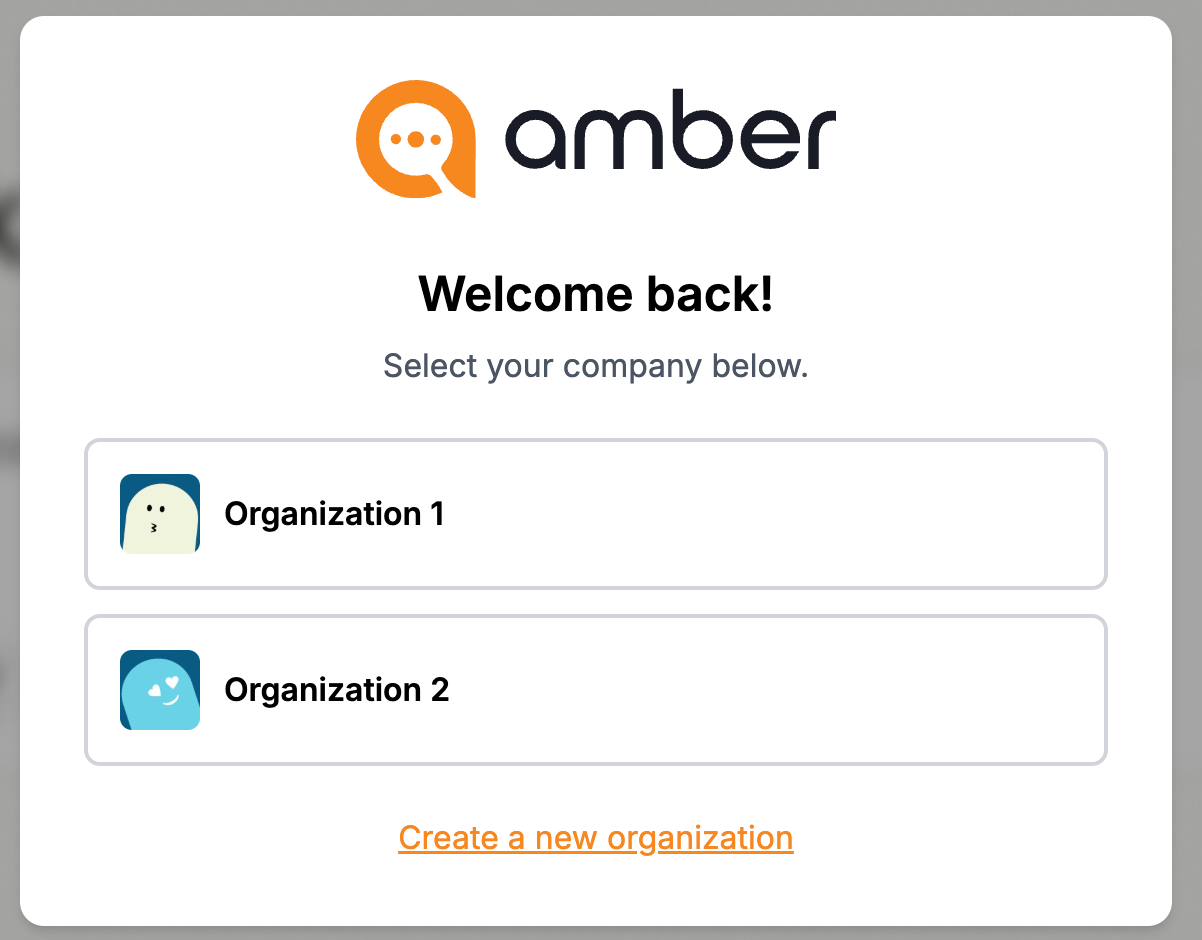
Select the correct organisation to access your chats, users, agents, and other content.
Why didn’t I receive a code or invitation?
Please check the following:
make sure the email address is correct
check your spam or junk folder
if possible, try using another email address
contact your IT administrator or mail provider if the email still does not arrive
If the email address was entered incorrectly, the code or invitation may have been sent to the wrong address.
How long does the trial last?
Please reach out to your amber contact for details on the trial duration. They will be happy to walk you through your options.
Sign-in & Access
Can I sign in with Microsoft?
Yes. On the registration screen, simply click "Continue with Microsoft" to sign in with your existing Microsoft account. No separate password is needed.
Why didn't I receive a code or invitation?
If you haven't received a confirmation email or invitation, please check the following:
Check your spam or junk folder – automated emails can sometimes land there
Make sure the correct email address was used during registration or when the invitation was sent
Wait a few minutes and refresh your inbox before trying again
If the issue persists, contact your administrator or reach out to the amber support team.
What should I do if my organization is not listed?
If your organization does not appear during setup, it is likely that no organizational environment has been created for your company yet. Ask your administrator to set one up, or register directly via amber Platform to create a new organization.
User Management (Administrators)
How do I invite users?
As an administrator, open the "Invite users" function via the settings menu. Enter one or more business email addresses, then click "Send invitations". Each invited user will automatically receive an email with a direct access link.
💡 Tip: Use "+ Add another email" to invite multiple people at once.
Where can I view sent invitations?
In the same "Invite users" dialog, switch to the "View invitations" tab. Here you can see all sent invitations along with their current status.
How do I know whether an invitation has been accepted?
Open the "View invitations" tab in the invite dialog. The status of each invitation is displayed there – you can see at a glance who has accepted and who has a pending invitation.
How can admins manage licenses?
License management is handled centrally by your amber contact. If you need to adjust the number of licenses for your organization, please reach out to your amber representative directly.
Content & Data
Why can't I see my chats, users, agents, or other content?
amber Platform content is tied to your organizational environment. If you are logged into a different account or a different organization, previously created content will not be visible.
Please make sure you are signed in with the correct account and that you are accessing the right organization. If the issue persists, contact your administrator or the amber support team.