🚀 amber Platform – Setup Guide
A quick guide to setting up the amber Platform, including prerequisites, initial configuration, and first steps to get started.
amber Platform is the 30-day free trial environment for new users. This guide walks you through everything you need to get started – from registration to setting up your organization and inviting your first team members.
Registration
Step 1 – Enter your business email
Open amber Platform and enter your business email address, then click "Continue".
Alternatively, sign in directly with "Continue with Microsoft" – no separate password needed.
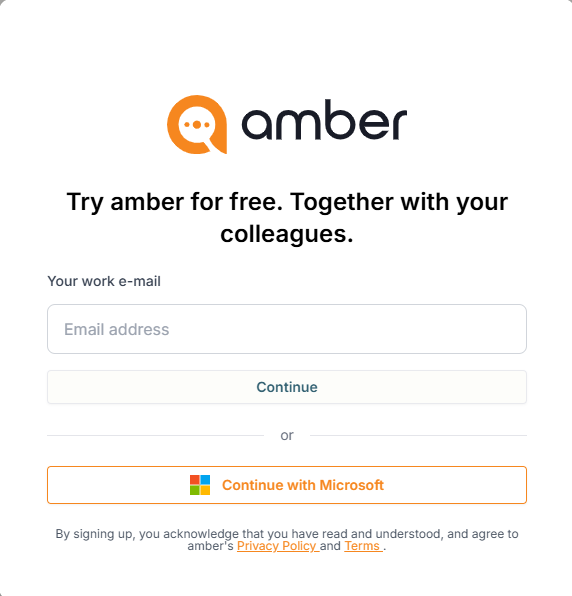
ℹ️ Note: Please use your business email address. Private email addresses (e.g. Gmail, Yahoo) may not be accepted.
Organization Setup
Step 2 – Configure your organization
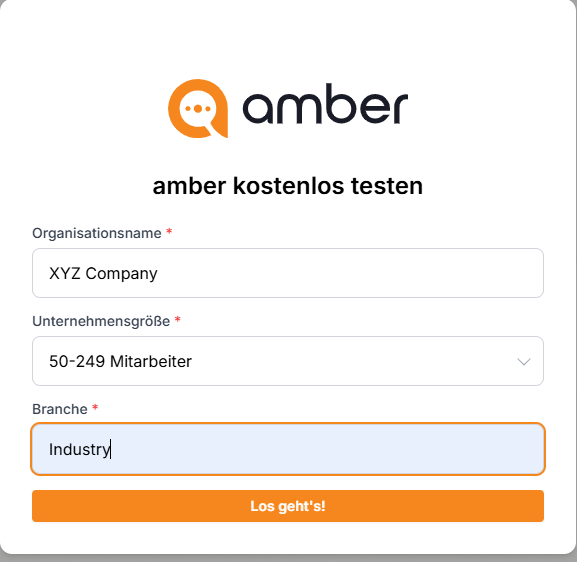
After verifying your email, you will be prompted to set up your organizational environment. Fill in the following details:
Organization name – the name of your company
Company size – select the appropriate number of employees
Industry – enter the industry your company operates in
Then click "Let's go!" to complete the setup.
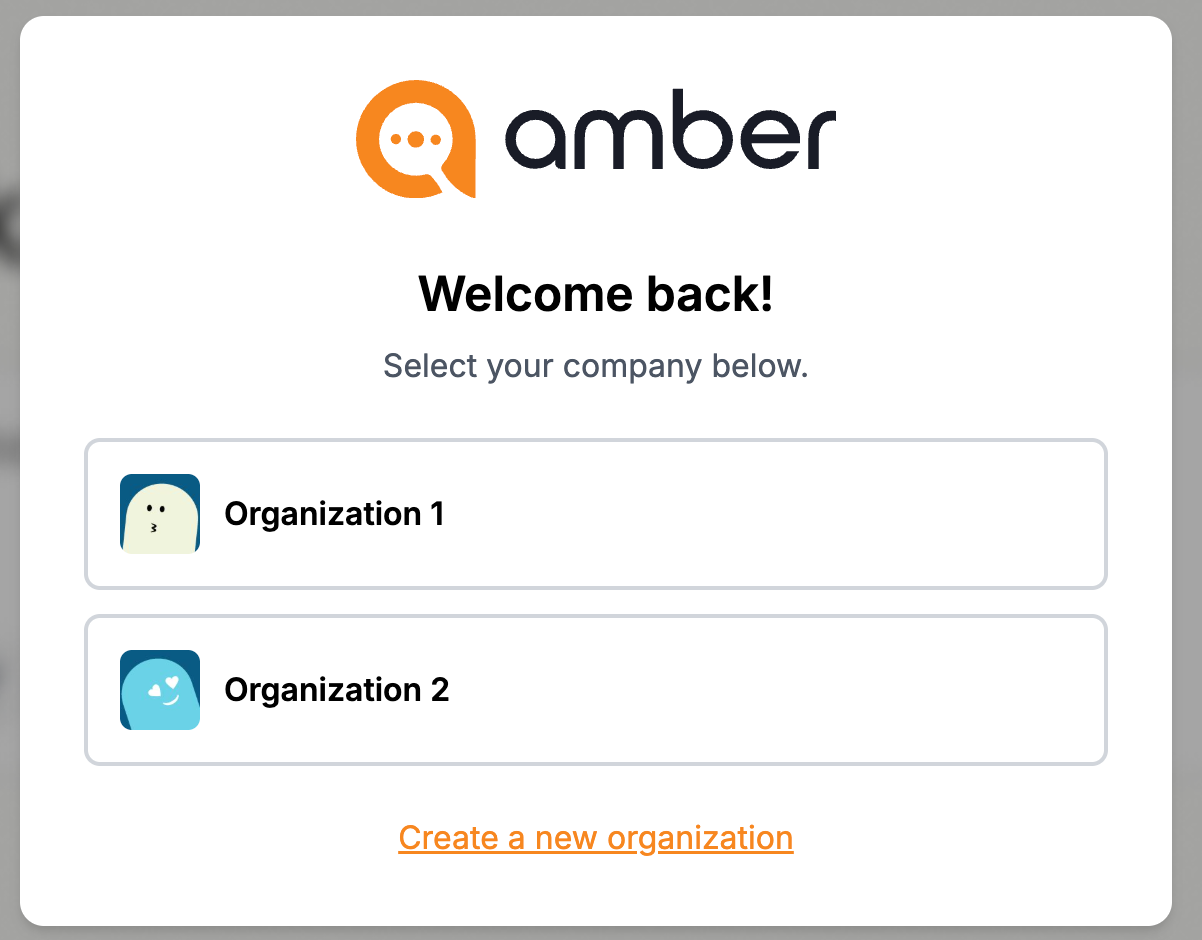
Inviting Users (Administrators only)
Step 3 – Invite colleagues
As an administrator, you can invite additional users to your organizational environment via email:
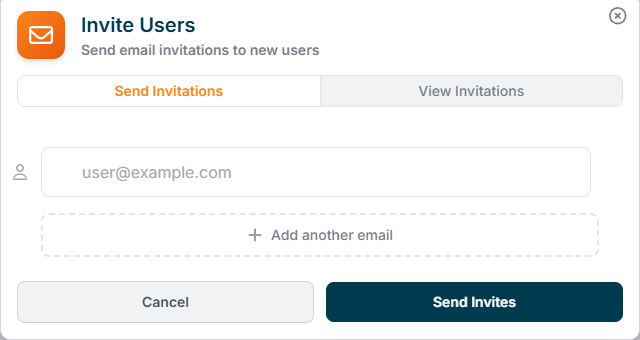
Open the "Invite users" function via the settings menu

Enter one or more business email addresses
Click "+ Add another email" to add multiple addresses at once
Click "Send invitations" to send the invite emails
💡 Tip: Invited users will automatically receive an email with a direct access link. No additional setup is required on their end.
Step 4 – Manage invitations
Switch to the “View invitations” tab in the same dialog to see which email addresses have already received an invitation. This helps you keep track of all pending invitations. Once an invited user’s email address no longer appears there, the invitation has been accepted by that user.
You're all set! Head over to the next article to learn which features are available in amber Platform.