📧 amber Outlook Add-in – Administrator
This guide explains how administrators can deploy the amber Outlook Add-in to all users in their organization via Microsoft 365 Integrated Apps, and how end users can work with each feature of the Add-in.
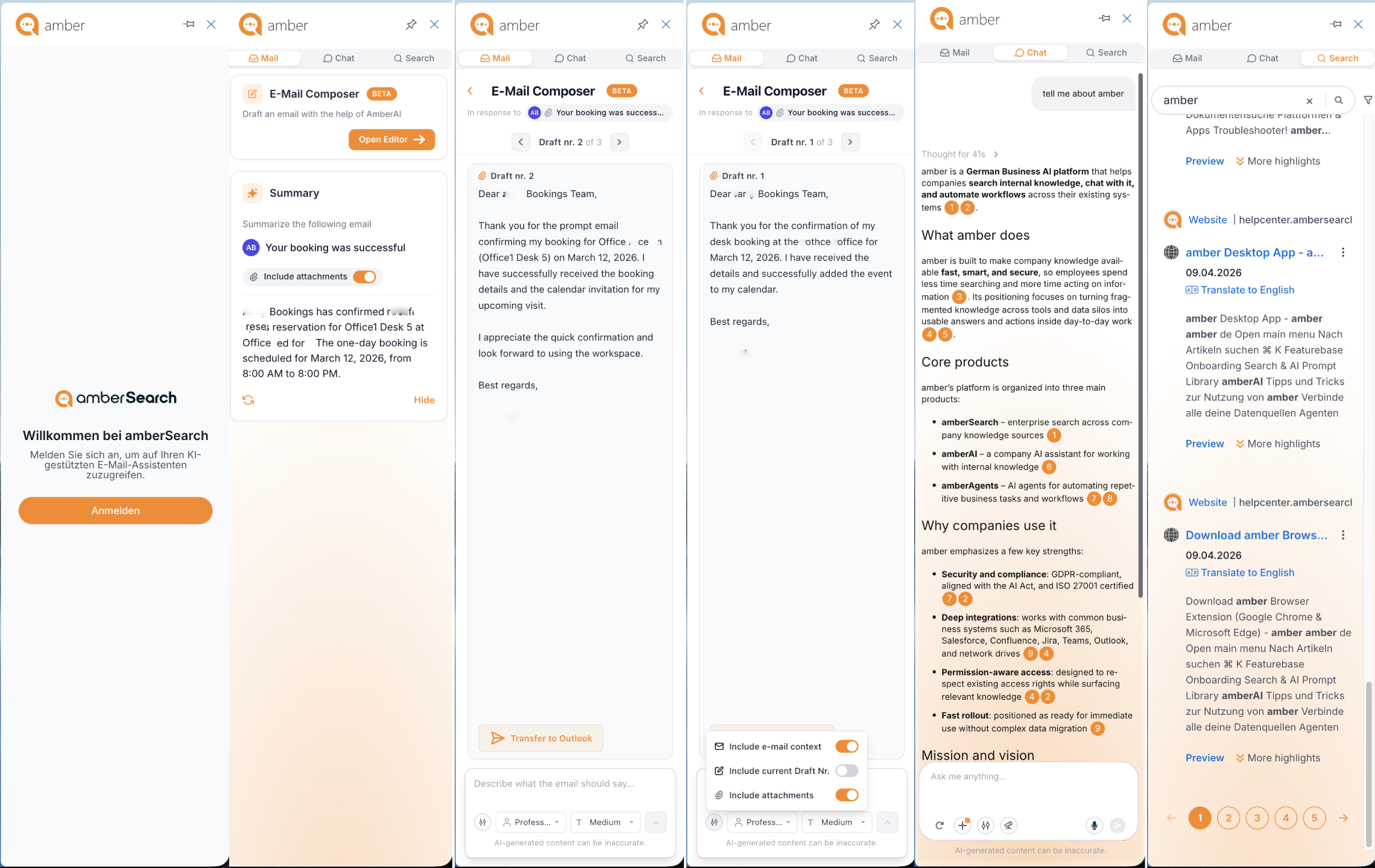
Prerequisites
A Microsoft 365 tenant with Outlook/Exchange Online mailboxes
Admin access to the Microsoft 365 Admin Center
Your amber instance URL (provided by your amber contact)
Outlook desktop (Windows/macOS) or Outlook on the web — Outlook 2016 or later
For the Plug-in to work you need to have Outlook (O365 Outlook) connected in amber.
Check this on your Administrator Dashboard first.
If outlook is not connected in amber as a data source, users will see a 503 error in the Plugin
For Administrators: Deploying via Integrated Apps
Step 1 – Get Your Manifest Link
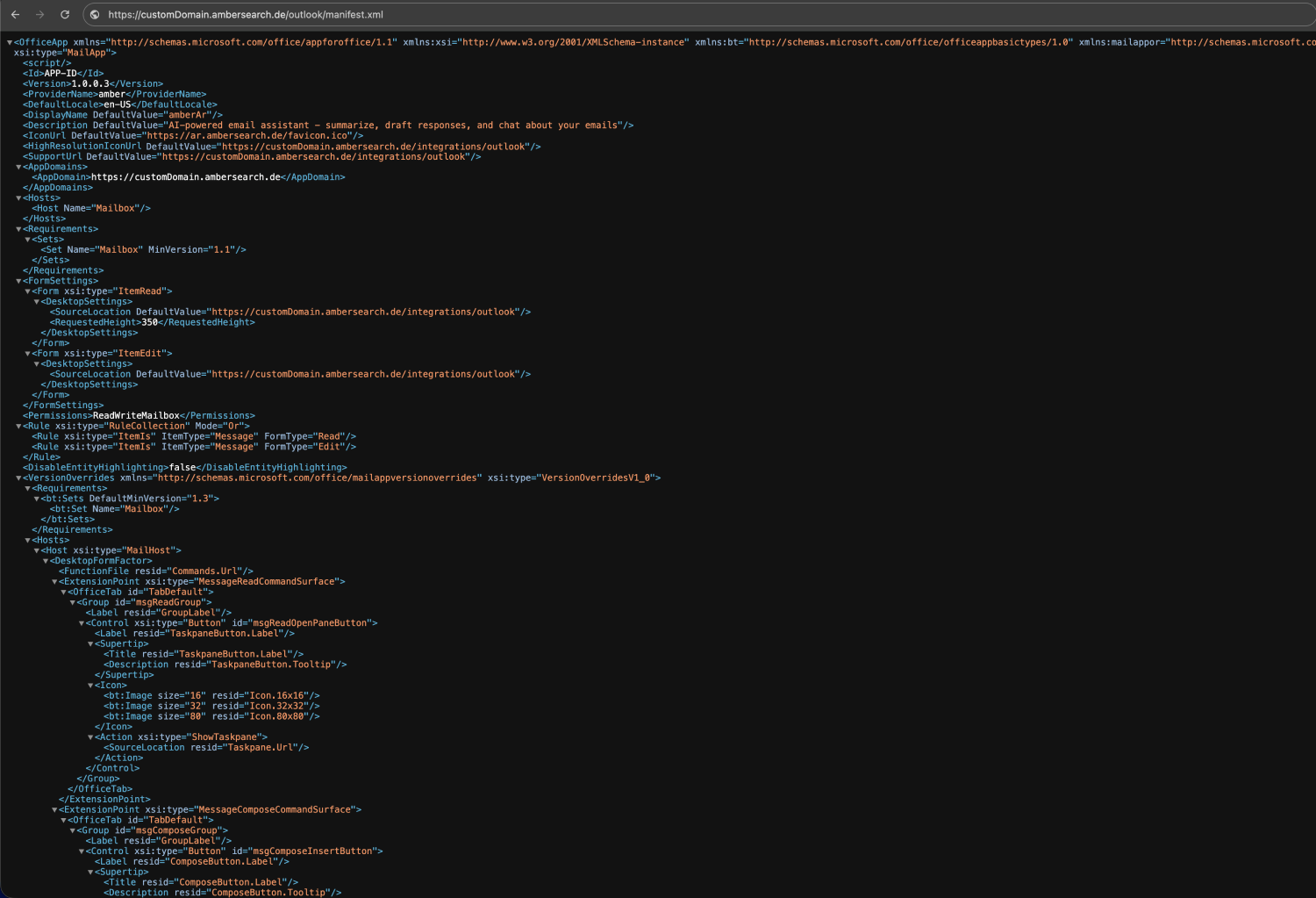
Copy your custom domain XML manifest link below:
https://customDomain.ambersearch.de/outlook/manifest.xml Note: Replace
customDomainwith your dedicated domain provided by amber (e.g.https://yourcompany.ambersearch.de/outlook/manifest.xml). This domain was shared with you by your amber contact during onboarding.
On some browsers (especially mobile browsers) the .xml file rendering is disabled. If you see some content like the following, make sure that .xml rendering is enabled.
3593eb61-c712-485d-b354-6bb238e78450 1.0.1.0 amber en-US https://xxxx.ambersearch.de
350
ReadWriteMailbox false
You will paste this link into the "Provide link to manifest file" field in the next step.
Step 2 – Upload to Microsoft 365 Admin Center
Open the Microsoft 365 Admin Center and sign in as a Global Administrator or Exchange Administrator.
In the left navigation, go to Settings → Integrated apps.
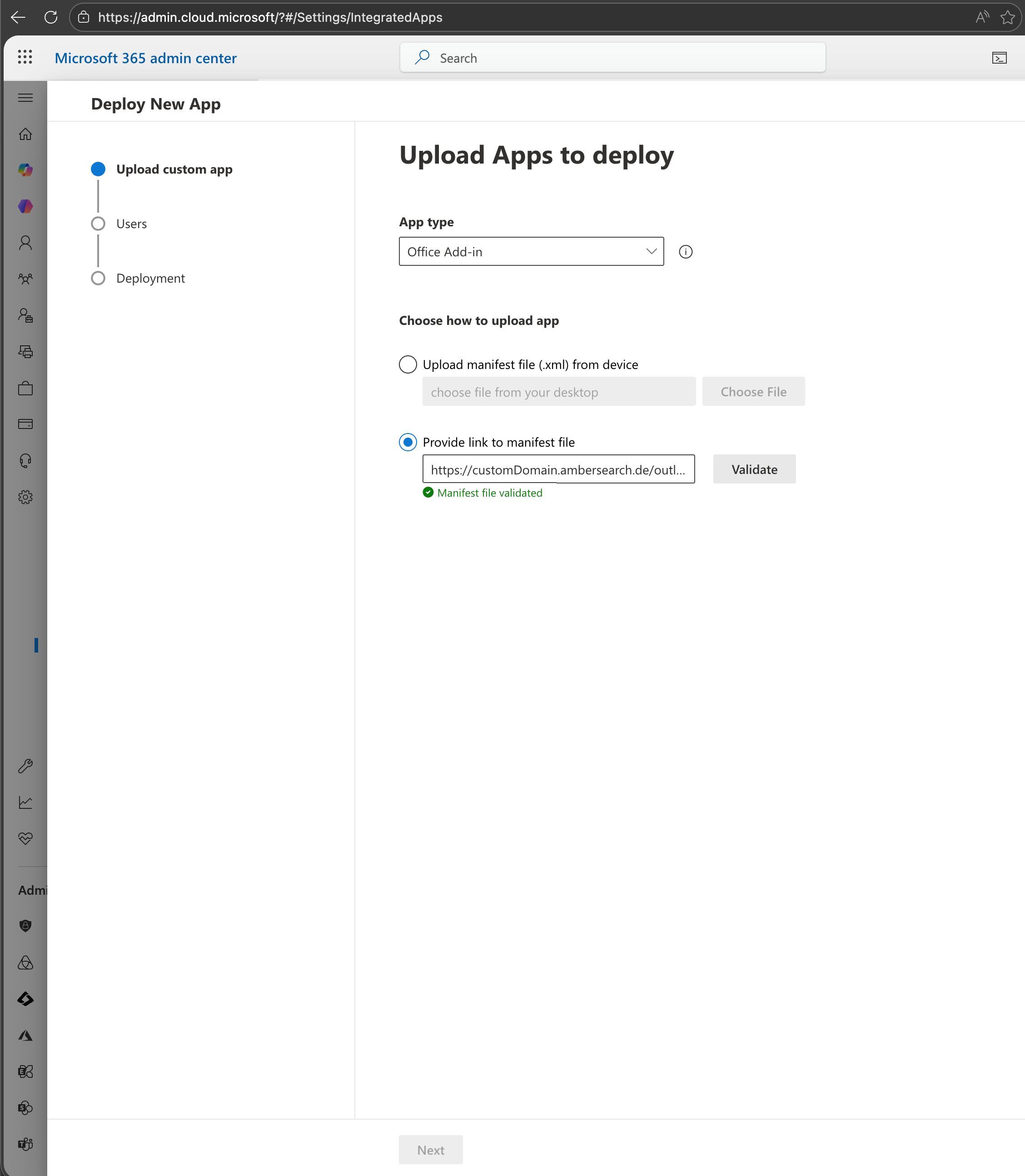
Click Upload custom apps.
In the dialog, select Office Add-in as the app type.
Choose Provide link to manifest file.
Paste the manifest link copied in Step 1 and click Validate.
Review the permissions summary:
ReadWriteMailbox – required for reading email content and inserting drafts.
Click Next to proceed to the user assignment step.
Step 3 – Assign to Users
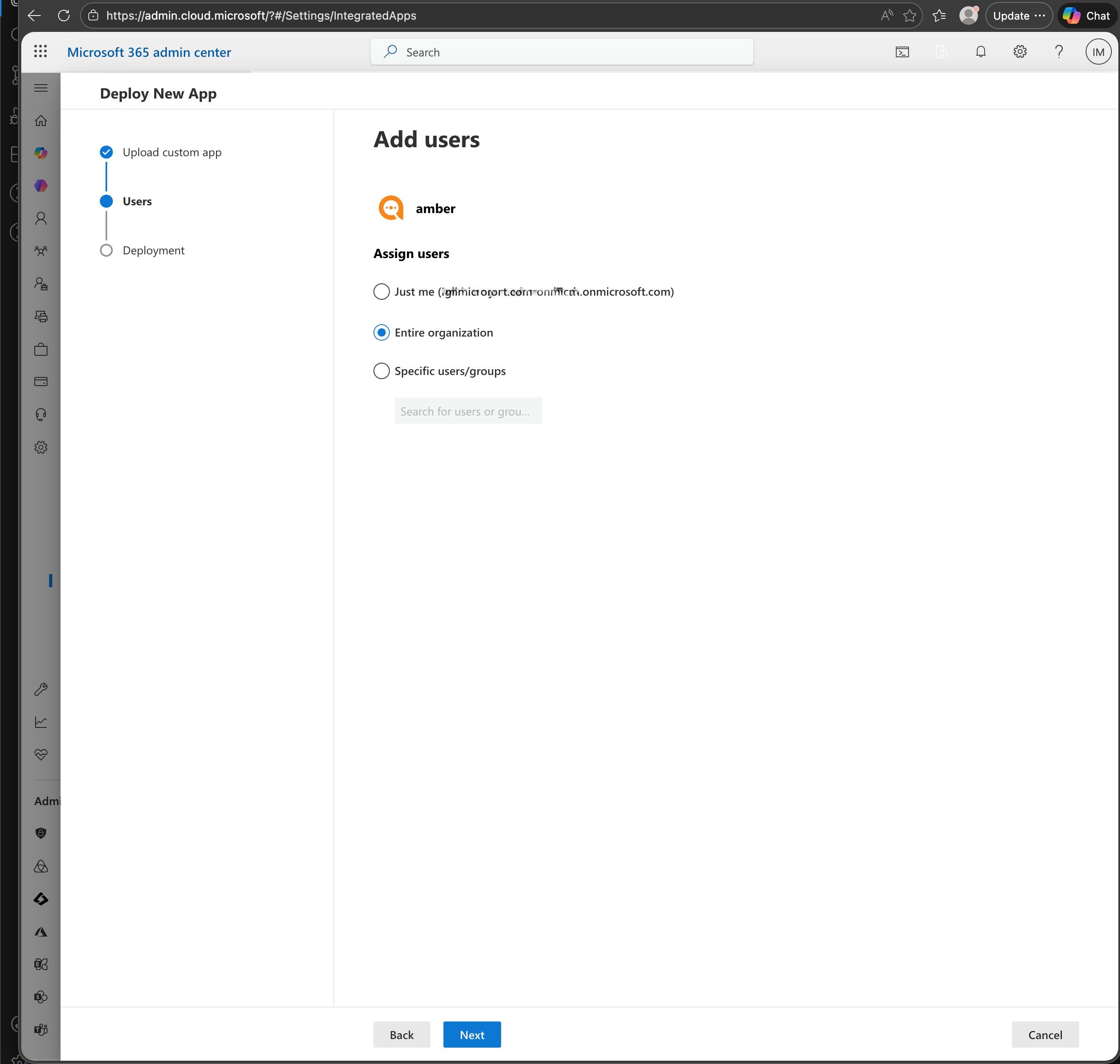
On the Assign users screen you can control who receives the Add-in:
Select the appropriate scope, then click Next → Finish deployment.
Deployment propagation may take up to 24 hours before the Add-in appears in users' Outlook clients.
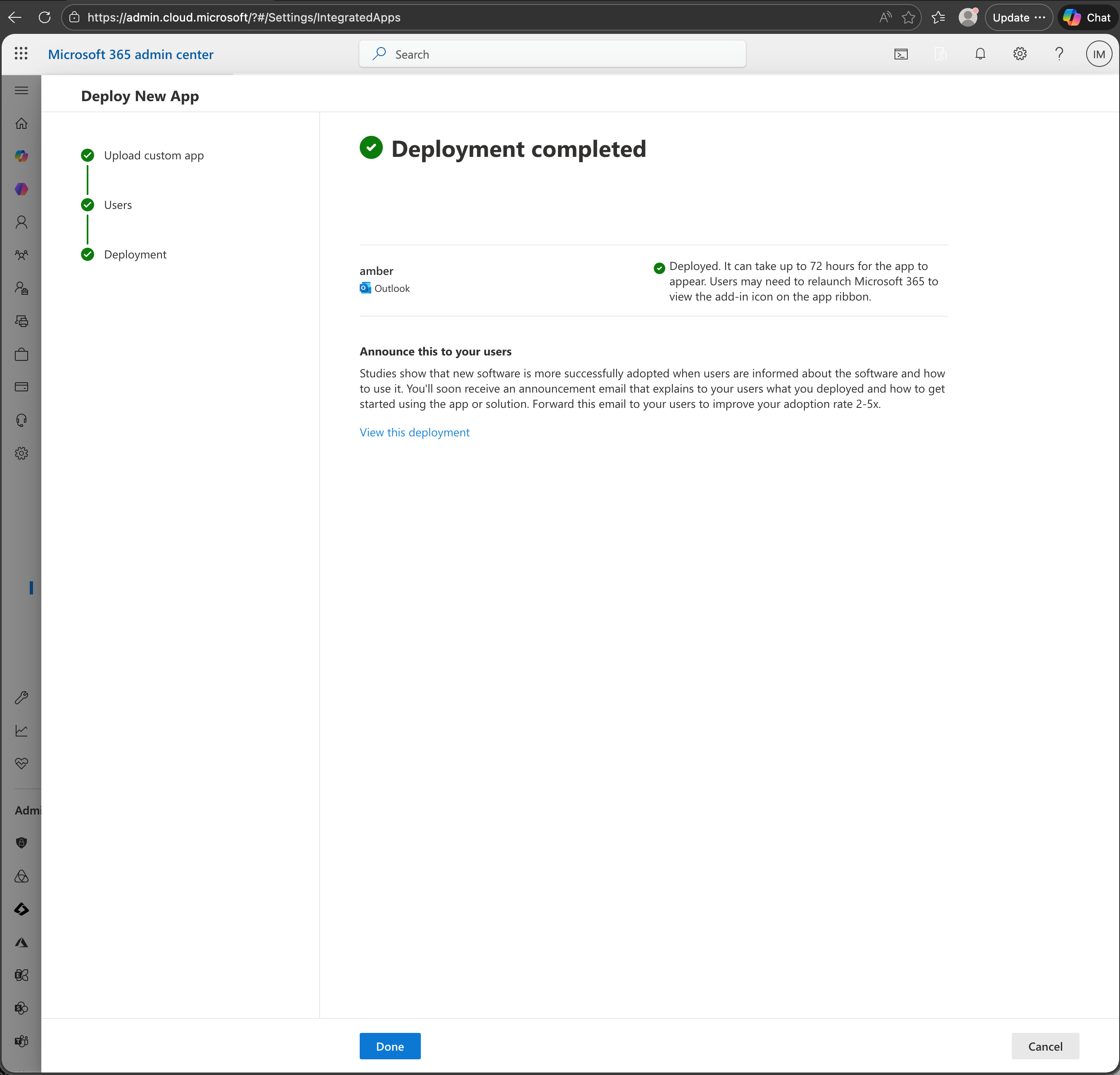

Step 4 – Verify Deployment
Ask a test user to open Outlook on the Web or Outlook Desktop and open any email.
In the email toolbar, they should see the amber button.
If it does not appear, check:
The manifest URL is reachable from the user's network.
The user is in the assigned group.
At least 24 hours have passed since deployment.

For Users: See the User manual here:
https://helpcenter.ambersearch.de/en/help/articles/2220173-e-mail-outlook-add-in-for-users