SetUp Staffbase Client
Generating an API Token
In the Studio open the platform Settings.
In the menu, under the section System click API Access.
Click Create API token.
The dialog to create the API token opens.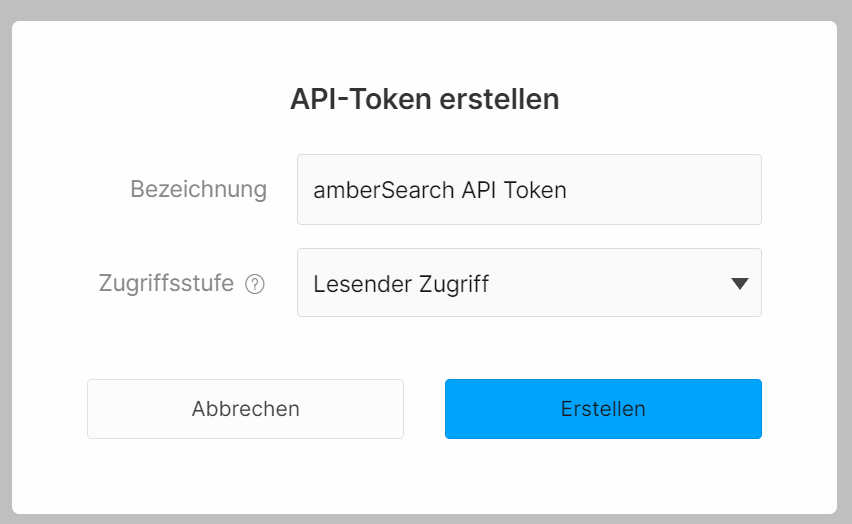
Enter a title.
Select read access as access level.
Click Create.
The API token is generated.
Retrieving the API Token
To use the API token you have created, you can copy it to a clipboard.
In the Studio navigate to the platform Settings.
Under the section System, click API Access.
Click on the required API token to copy it to the clipboard.
You can use the copied API token to establish communication between third-party services and the Staffbase API.Share the API token with amber.
Reference: https://support.staffbase.com/hc/en-us/articles/360015755691-Generating-an-API-Token
Adding Token to content pages
In the Studio open the Content.
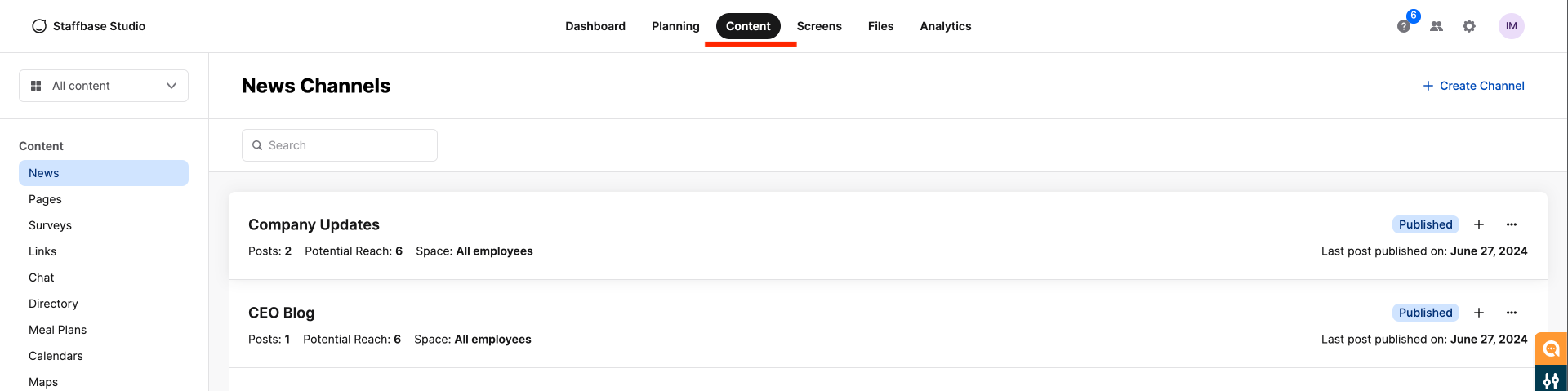
Go to the specific page content.
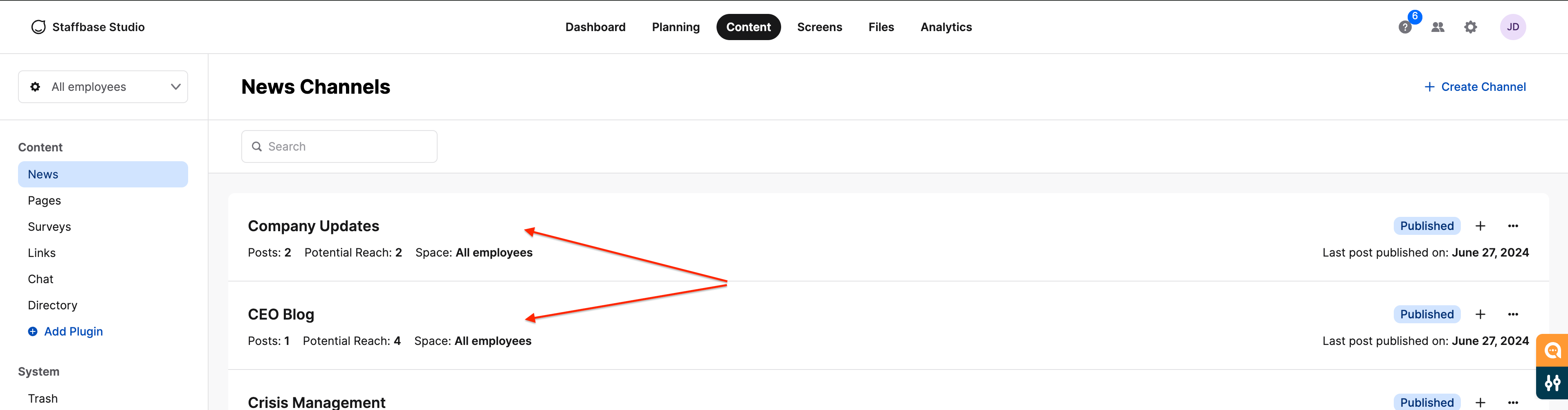
On the selected content, go to settings.
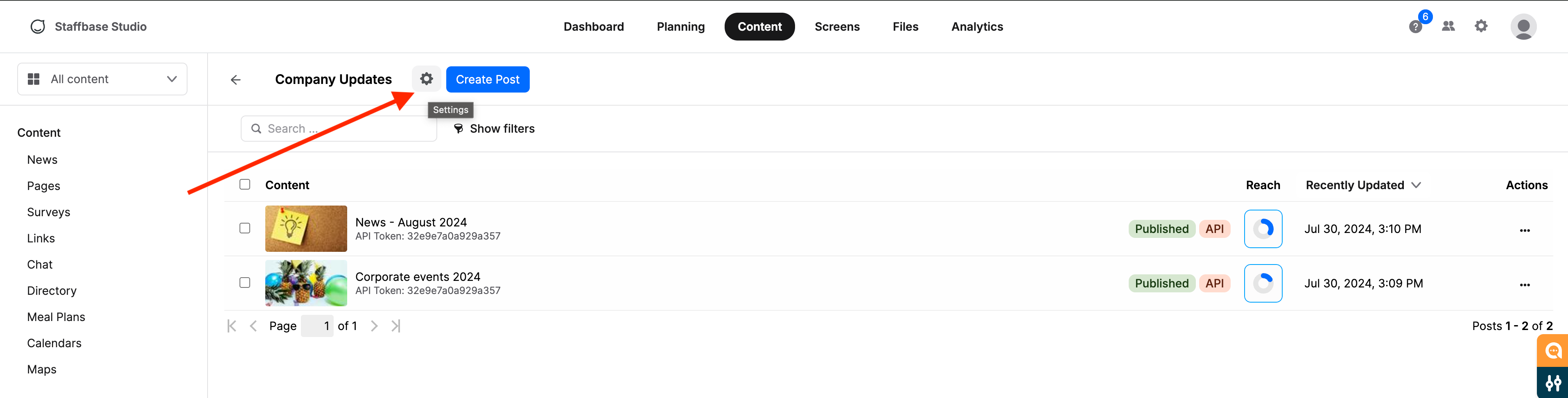
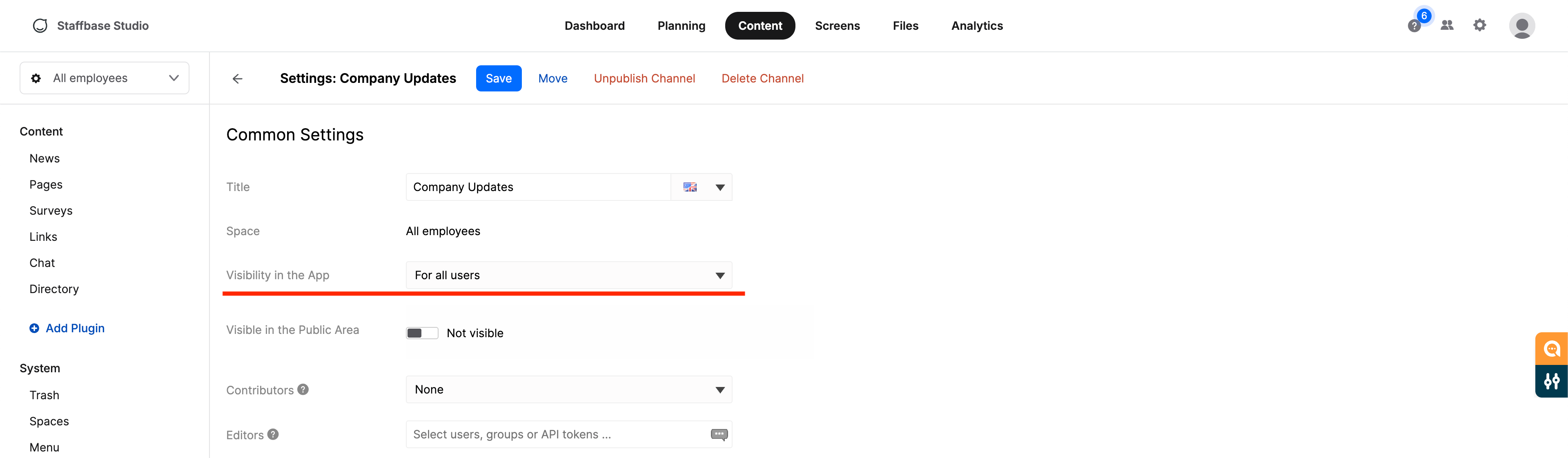
In the field Visibility in the App, select For selected users, groups or API Tokens.
Beside the users of the company (or groups), add the token aswell.
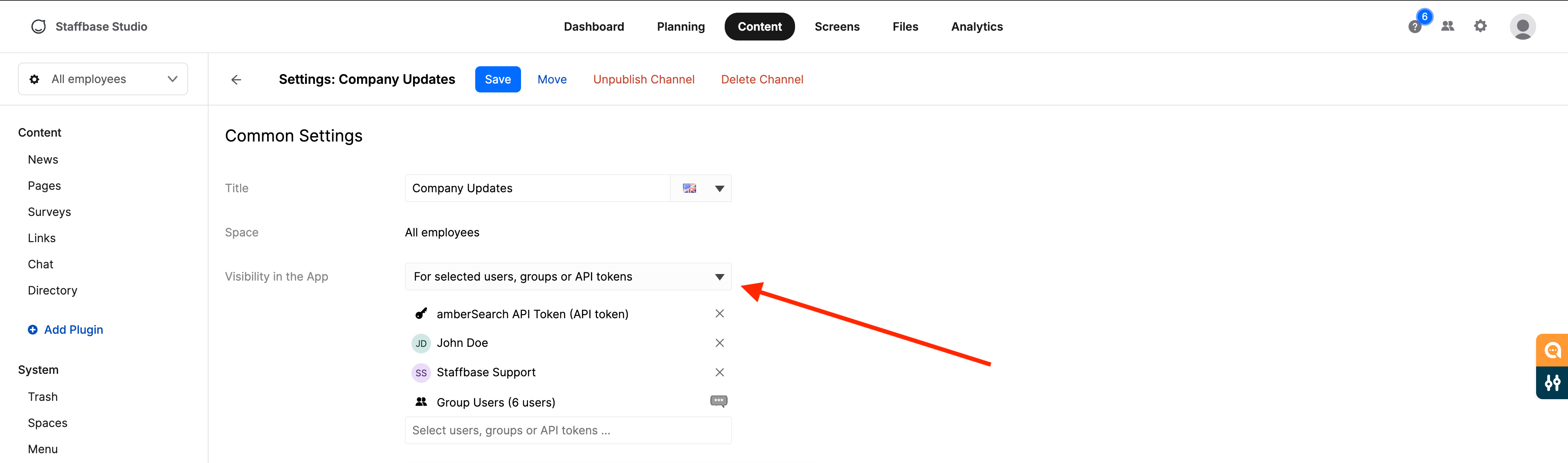
Click save and this makes this content page discoverable by amber.
At this point the Token is created. Please share it with amber.