Using amber with Claude (claude.ai)
Overview
This integration works via the Model Context Protocol (MCP), an open standard that lets AI assistants securely call external tools. amber exposes its search and retrieval capabilities as an MCP server, and Claude.ai can connect to it as a custom connector.
What users can do once connected:
Ask Claude to search amber for documents, emails, or knowledge base articles
Get results from all connected amber data sources (SharePoint, Teams, Confluence, etc.) directly in Claude chat
Combine amber's enterprise search with Claude's reasoning and writing capabilities
Prerequisites
You must be an amber Administrator to create the OAuth2 client credentials
You must have Organization Admin access in Claude.ai to add a custom connector
Your amber instance must be reachable under a public domain (e.g. https://yourcompany.ambersearch.de)
Step 1 — Create an OAuth2 Client in amber (Admin)
To authorize Claude.ai to access your amber MCP server, you first need to create a dedicated OAuth2 client in amber's admin settings.
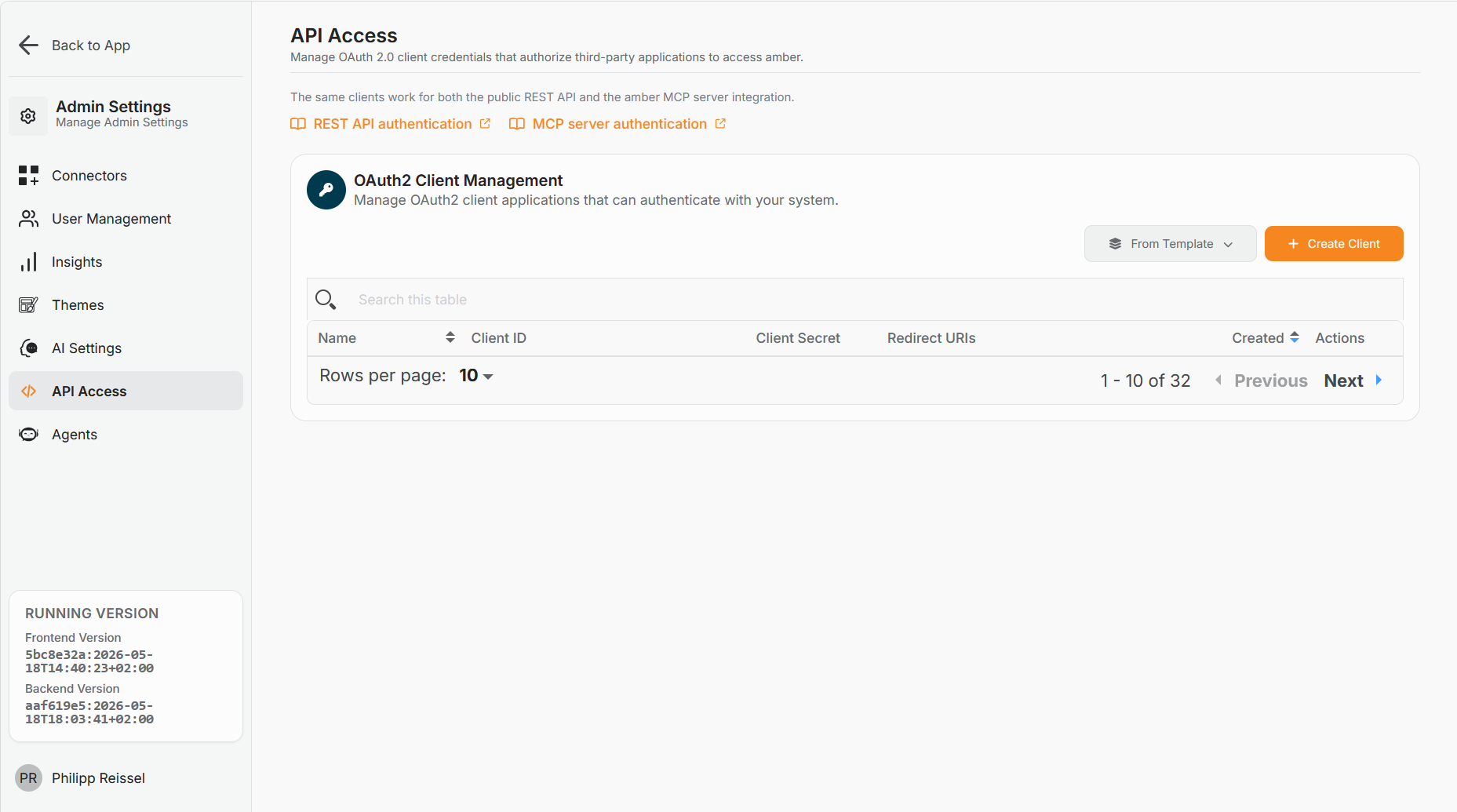
Open your amber instance and go to Admin Settings → API Access.
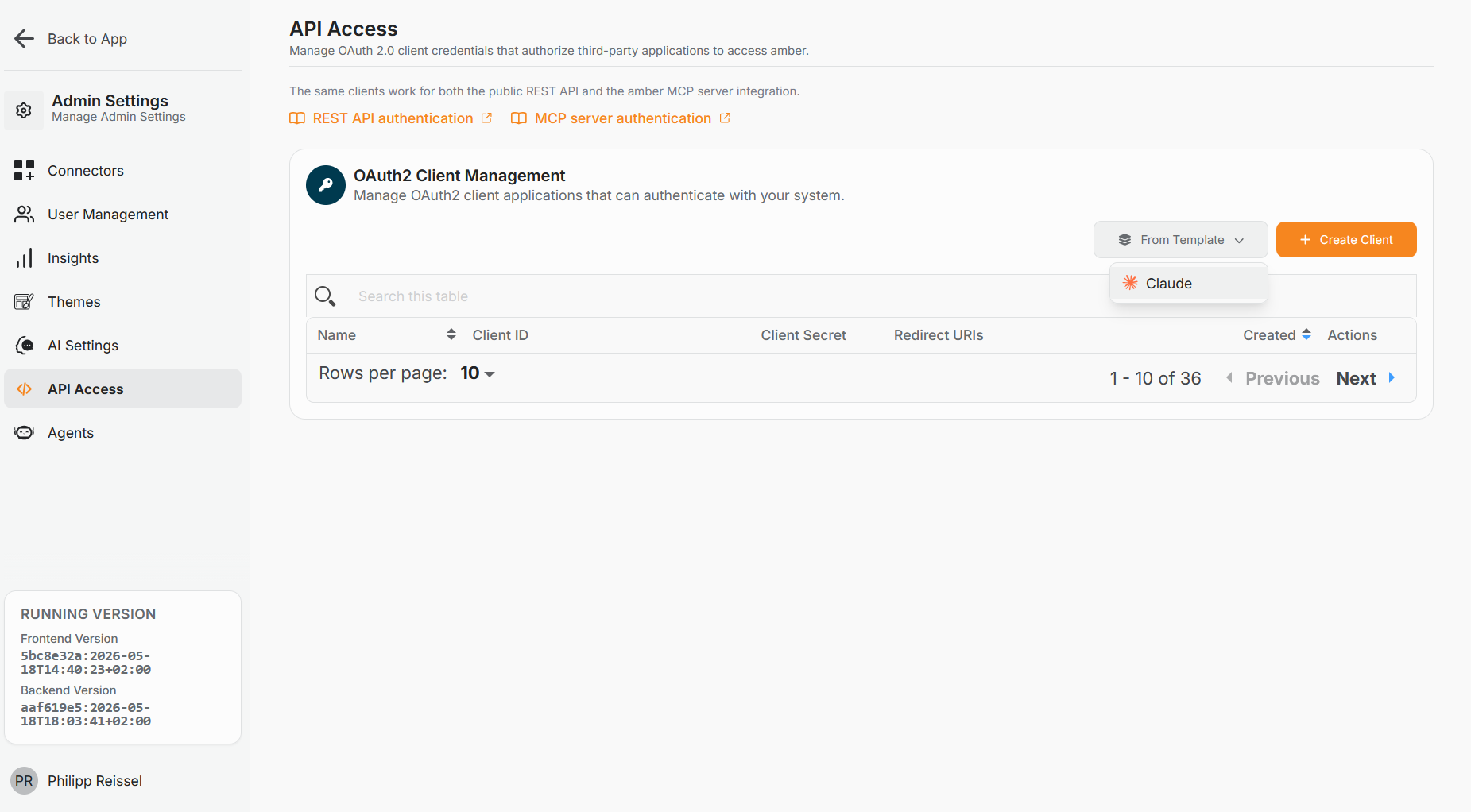
Click From Template and select Claude from the dropdown.
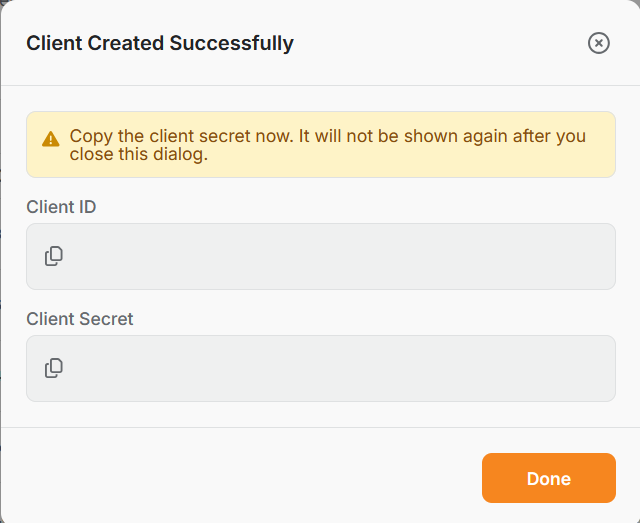
amber will create the client and display a confirmation dialog with the credentials.
Copy both values immediately — the Client Secret is only shown once and cannot be retrieved later:
Client ID
Client Secret
Store them securely (e.g. in a password manager). You will need them in the next step.
Step 2 — Add a Custom Connector in Claude.ai (Organization Admin)
Now you register the amber MCP server in your Claude.ai organization so it becomes available to your team.
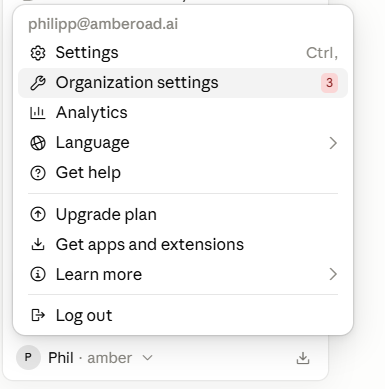
In Claude.ai, click your profile name in the bottom-left corner and select Organization settings.
In the left sidebar, click Connectors. Click + Add → Custom → Web.
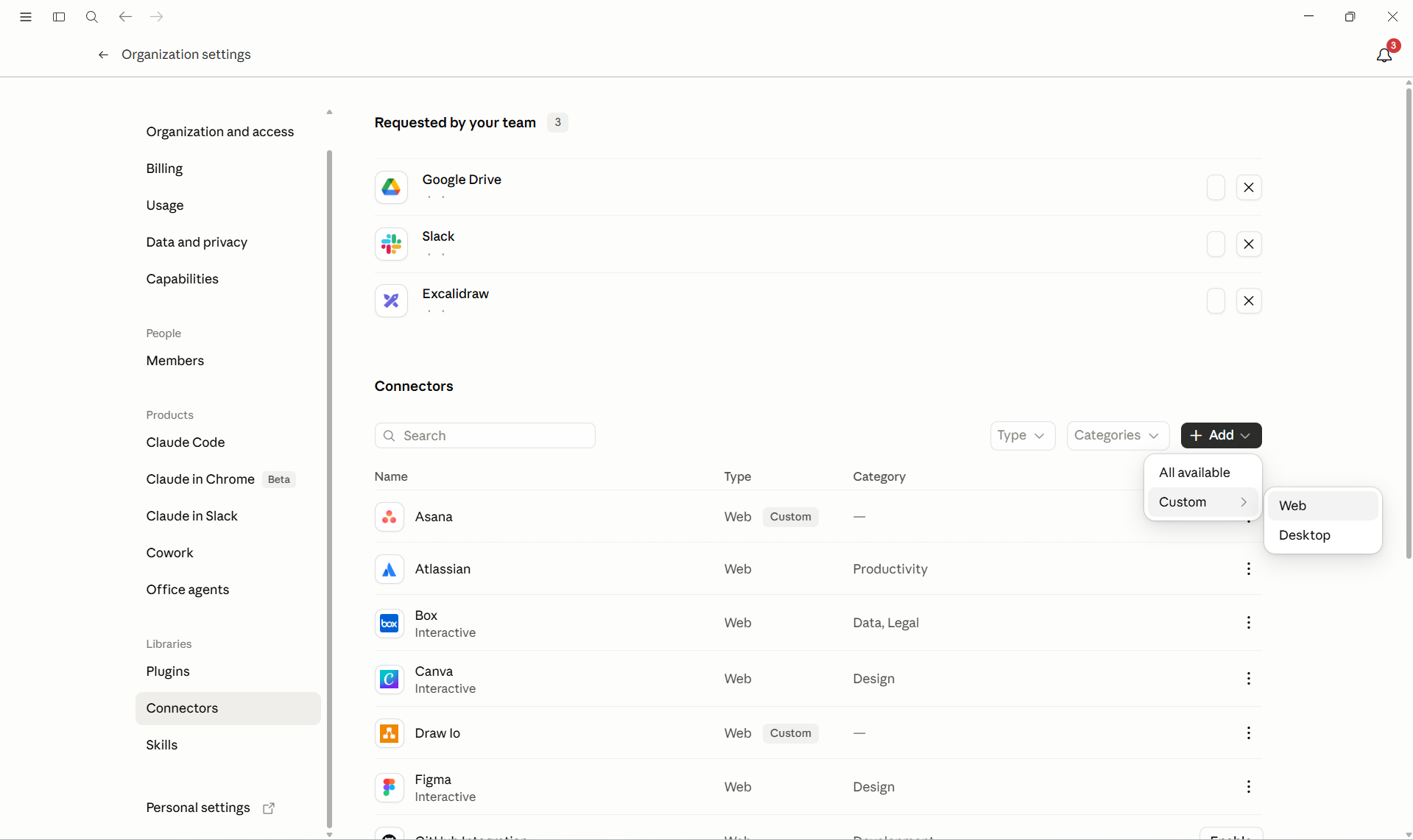
Fill in the Add custom connector form:
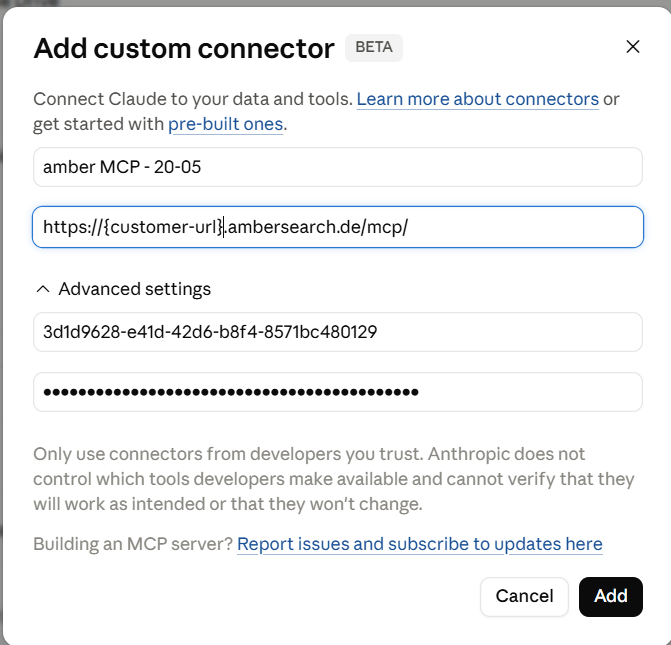
Replace {customerDomain} with your actual amber subdomain, e.g. https://yourcompany.ambersearch.de/mcp/
Click Add to save the connector.
Claude.ai will verify the connection and the amber MCP will be available to your organization.
Step 3 — Using amber in Claude.ai
Once the connector is set up, any user in your Claude.ai organization can start searching amber directly from chat.
Simply describe what you're looking for and Claude will use the amber MCP tools to retrieve results:
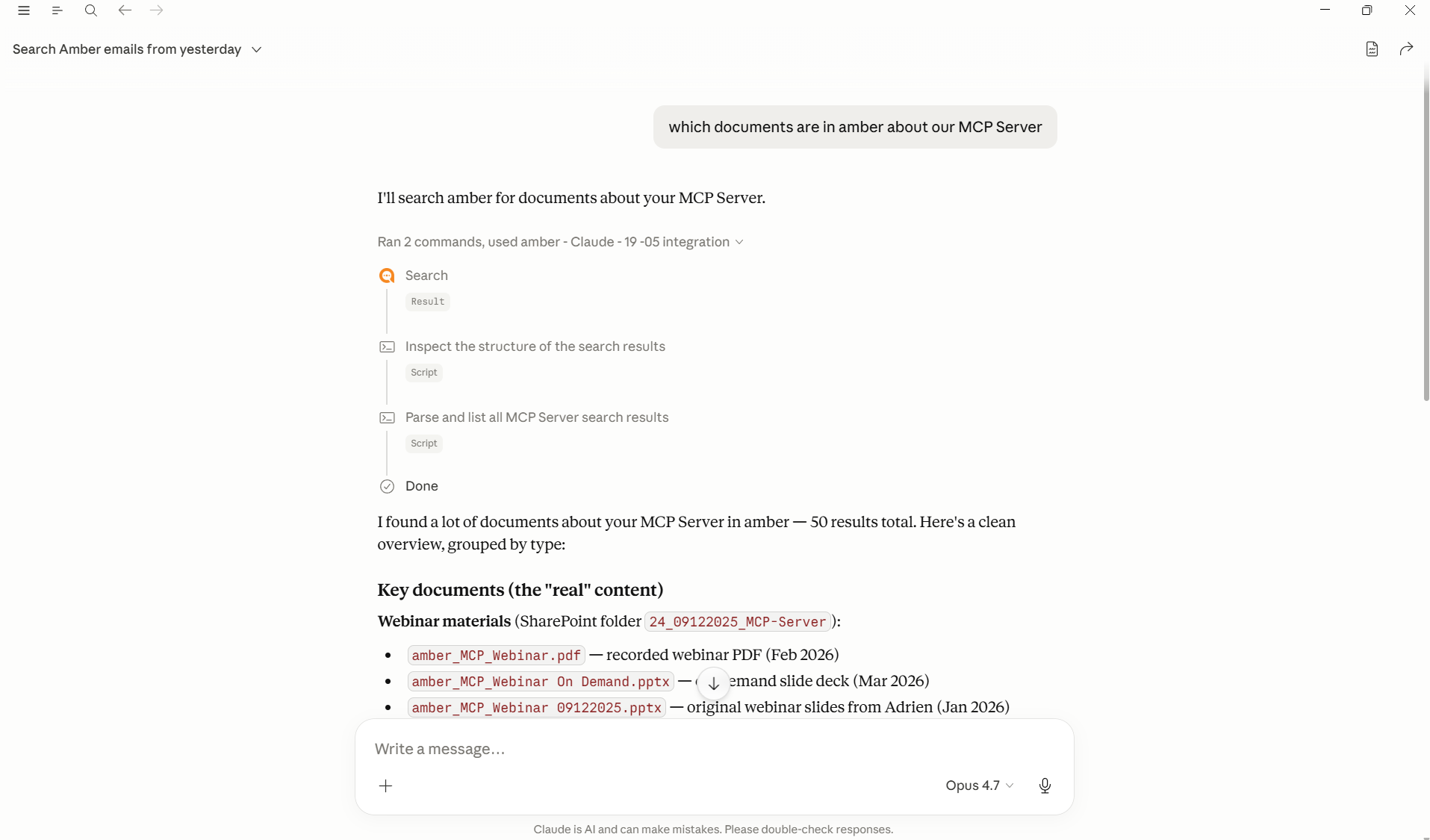
Example prompts:
"Which documents are in amber about our MCP Server?"
"Search amber for the latest onboarding guide."
"Find all Confluence pages related to our Q1 roadmap."
"What emails did I receive yesterday about the project handover?"
Claude will run the search, inspect the results, and present a structured summary — including document names, sources, and dates.