Atlassian MCP / App in amberAI for Users
Control Jira & Confluence directly from amberAI – Guide for End Users
What is the Atlassian MCP Server?
MCP (Model Context Protocol) servers are an abstraction layer for integrating external tools and capabilities into amberAI. amberAI already includes many built-in tools that let you search your internal documents, browse the web, generate images, and much more. However, these tools do not interact with external applications such as Jira or Confluence.
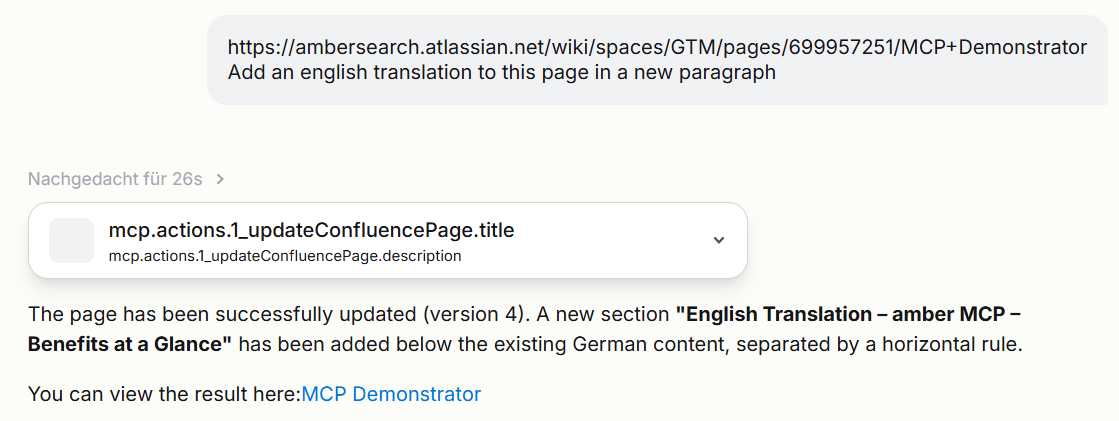
This is where the Atlassian MCP Server comes in: it enables you to perform actions in Jira and Confluence directly from an amberAI conversation for example, creating issues, managing sprints, or building Confluence pages.
Setup & Connection
Prerequisites
· An active amber account with access to amberAI
· An Atlassian account (Cloud)
· The Atlassian MCP Server has been set up by your administrator
How to connect
Step 1: Open user settings via your Name on the bottom left in amber
Navigate to User Settings → Connectors → Apps.
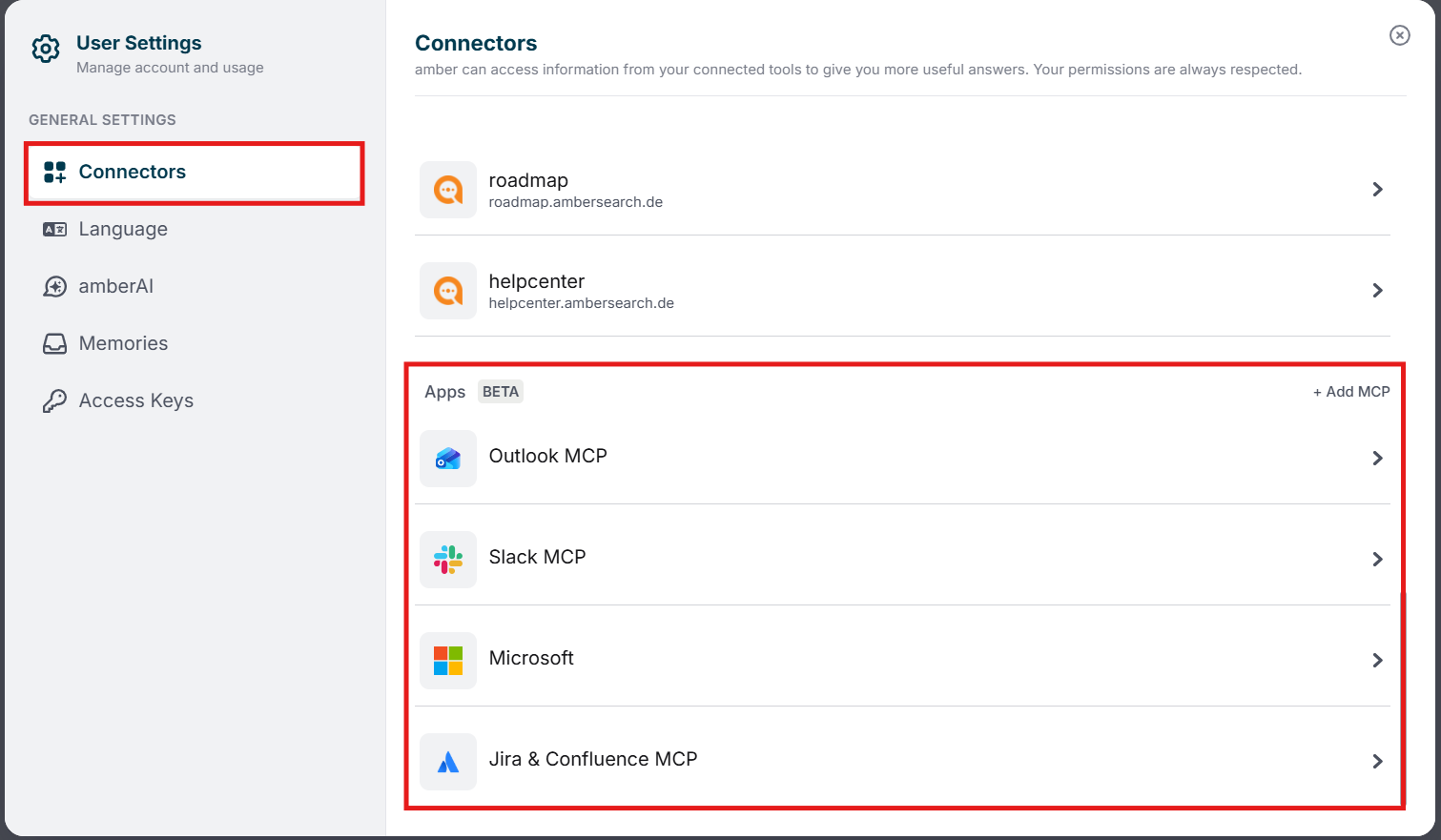
Step 2: Find the Atlassian MCP Server
In the app overview you will see the Atlassian MCP Server provided by your administrator.
Step 3: Establish the connection
Click on the MCP Server and follow the authentication flow (e.g. OAuth or API token). This step is required to retrieve all tools and functions and make them available in amberAI.
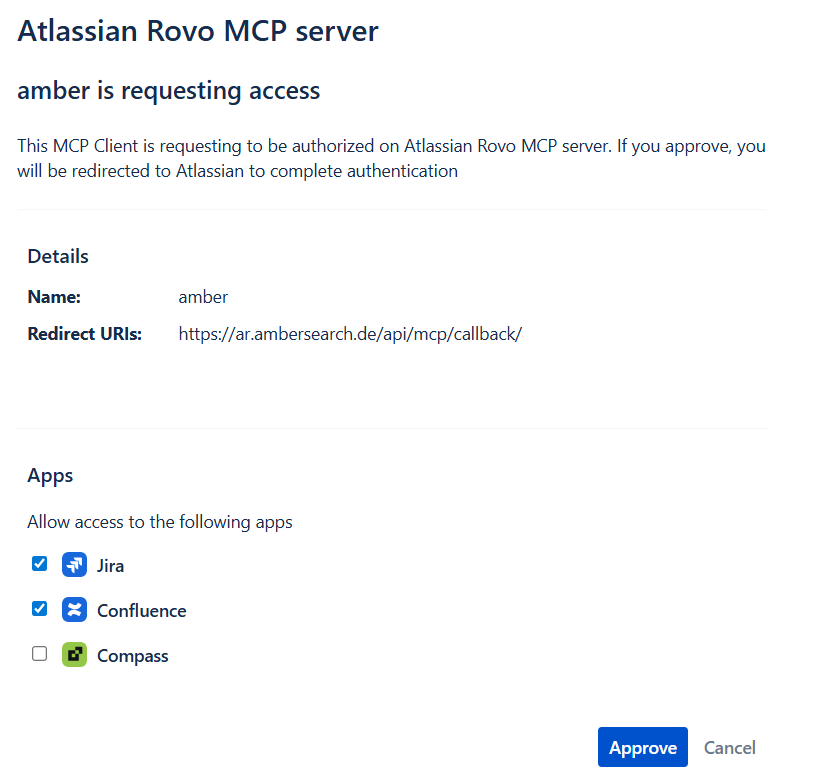
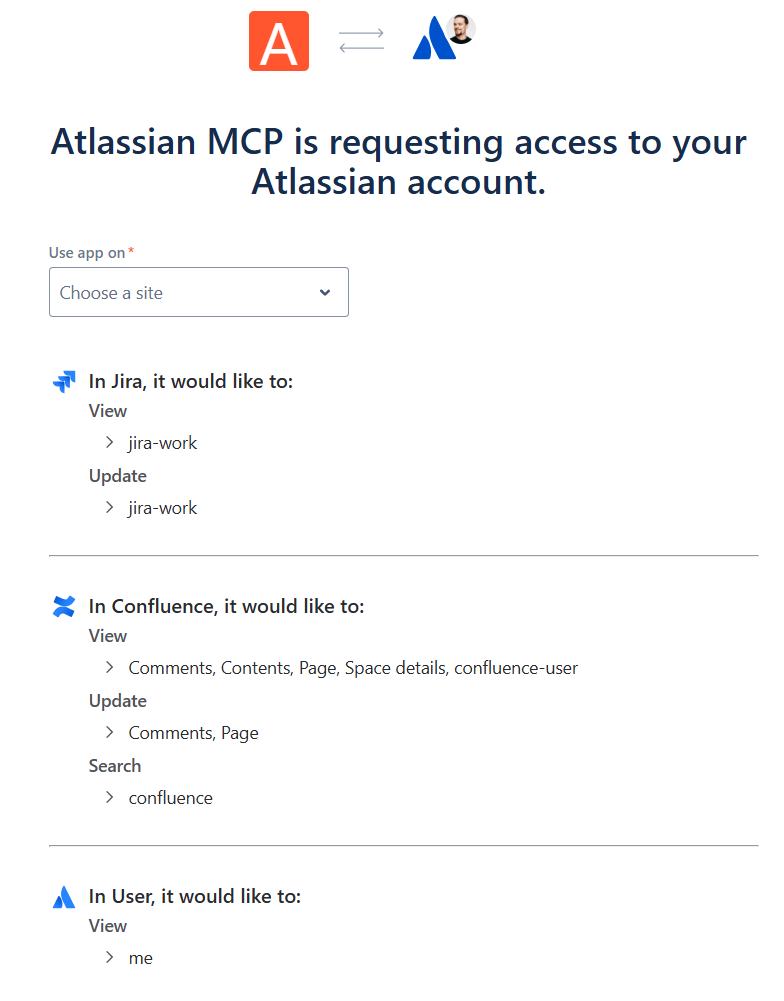
Step 4: Reload the page
Reload the amber page once – the Atlassian integration is now active.
Available Actions
Jira Actions
Confluence Actions
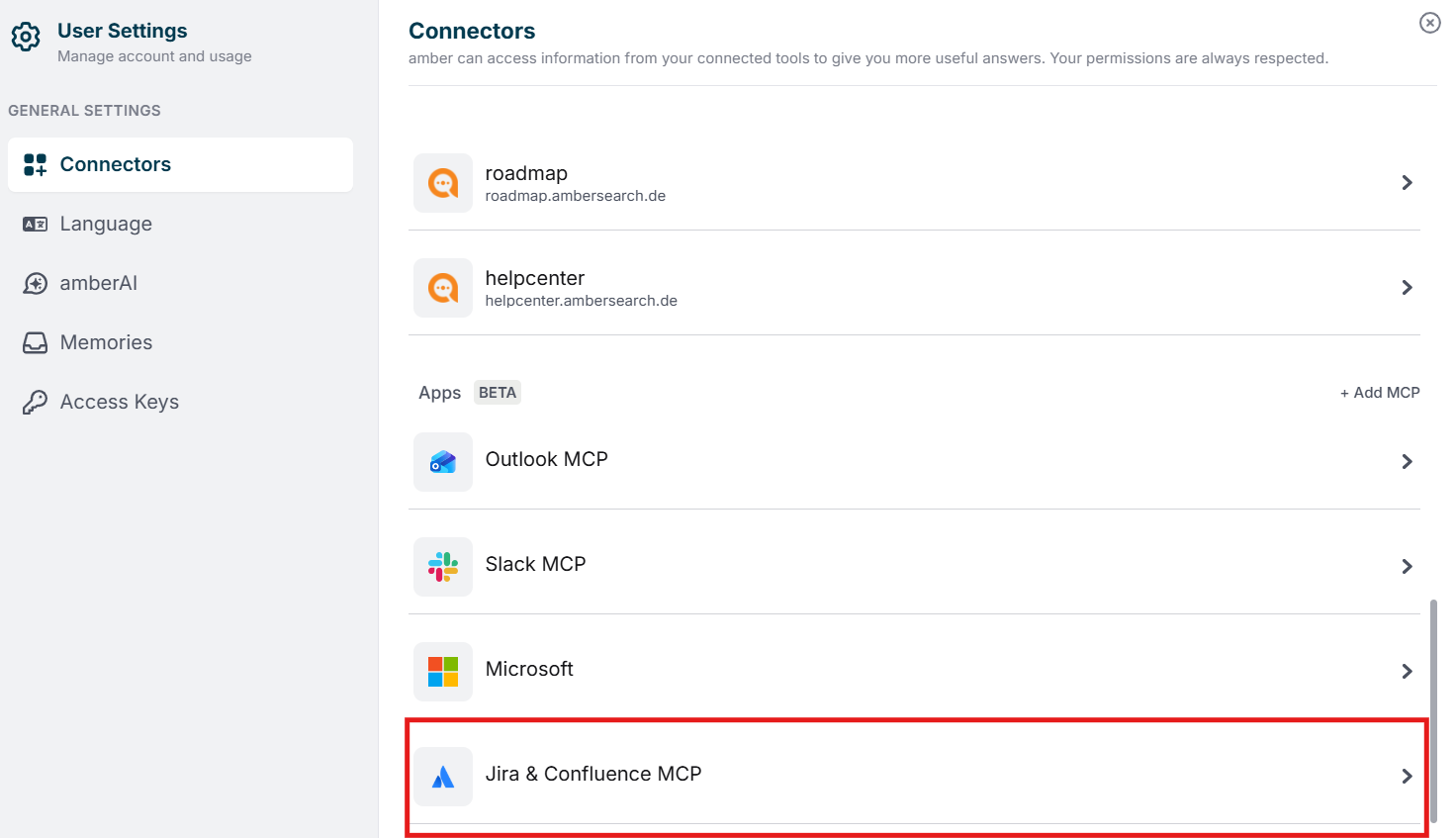
Managing Permissions
You can define how amberAI should handle each individual tool of the Atlassian MCP Server. Open the MCP Server in your user settings and adjust the permissions per tool:
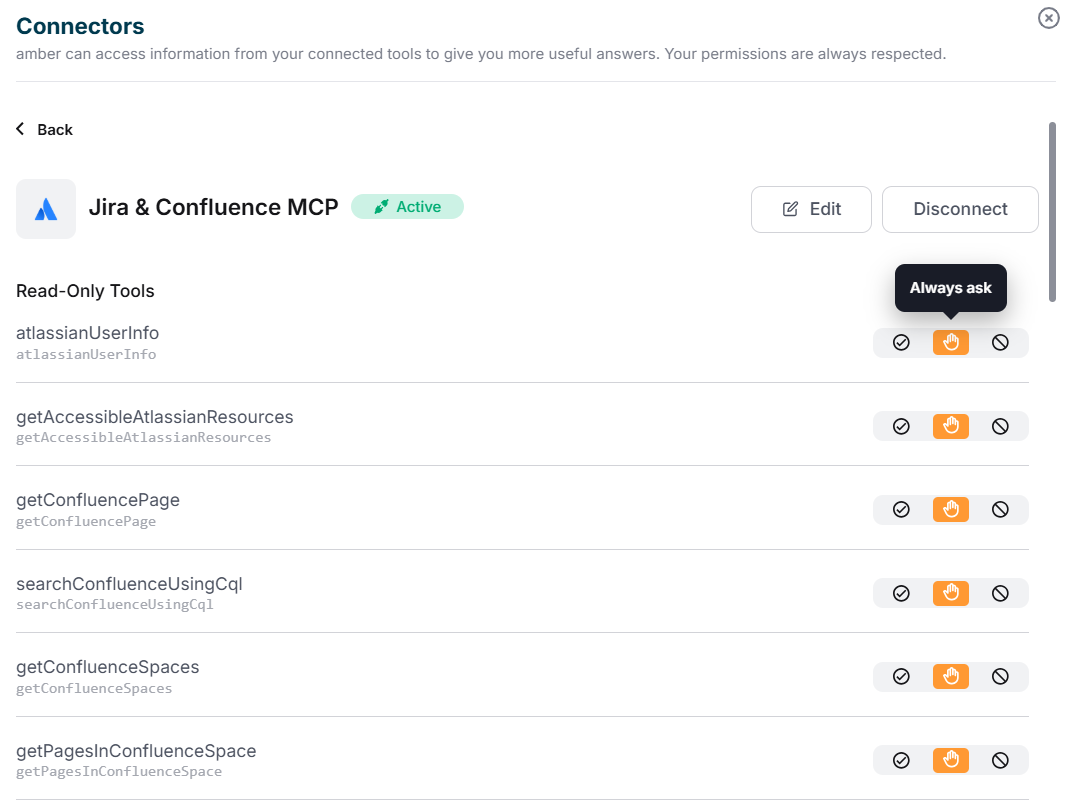
Using the MCP Server in amberAI
Activating the MCP Server
1. Open a new or existing conversation in amberAI.
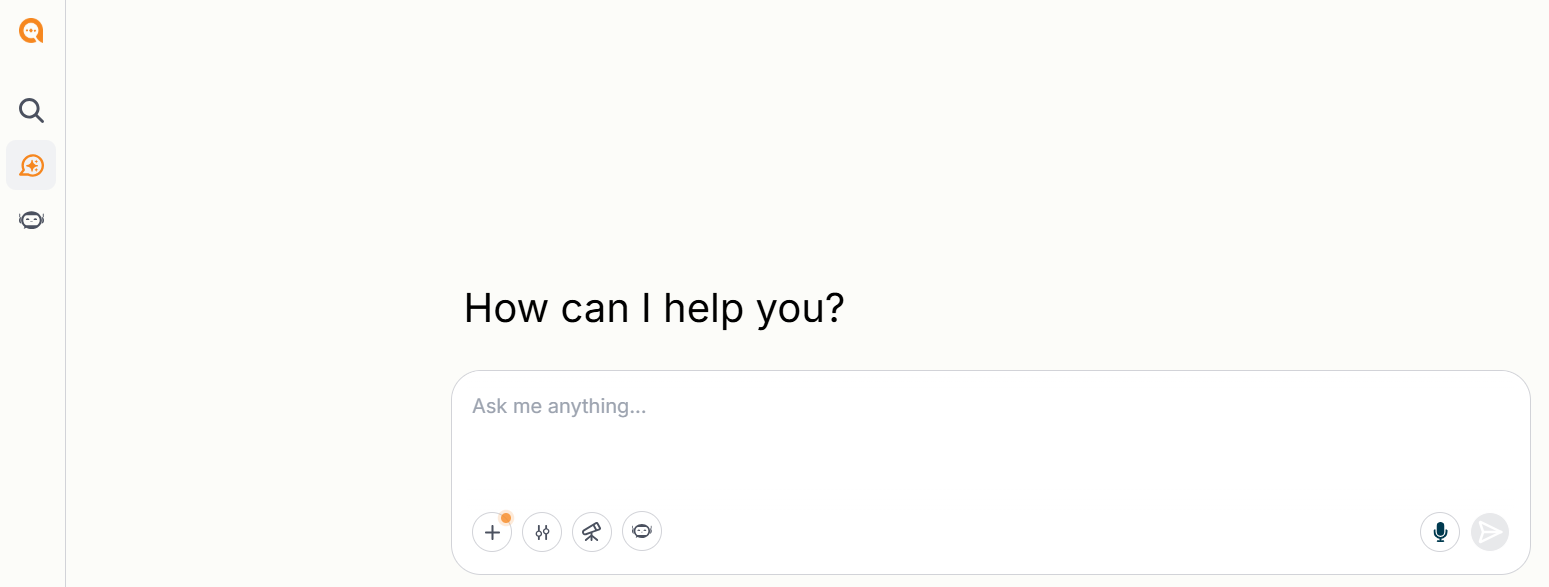
2. Click on "Apps" in the options area below the chat input.
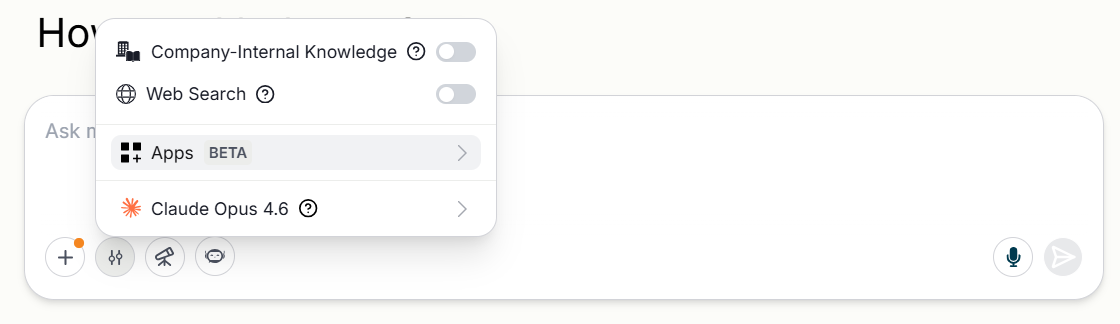
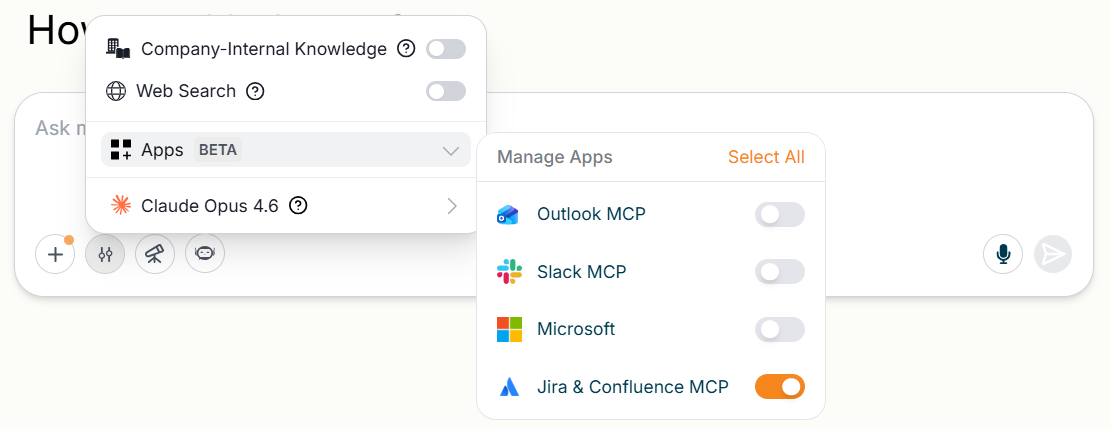
3. Enable the Atlassian MCP Server to make its tools available for the conversation.
4. Enter your request in natural language.
How it works in the chat
When amberAI wants to use a tool from the Atlassian MCP Server, it checks your permissions:
· With "Always ask": You receive a notification and can approve or decline.
· With "Always allow": amberAI uses the tool directly and shows you the results.
· With "Always deny": amberAI skips the tool and acts accordingly.
Our recommendation is to set the mode to "Always allow"; this will save you time with every MCP request by reducing the number of authorization requests from amberAI.
Example prompts
You can ask amberAI to perform Atlassian actions in natural language:
· "Create a Jira ticket in the MARKETING project with high priority and assign it to John Smith."
· "Show me all open issues in the current sprint of the WEBDEV project."
· "Create a new Confluence page in the Documentation space titled Meeting Minutes."
· "Change the status of ticket ABC-123 to In Progress."
· "Summarize all comments on issue DEF-456."
· "Which issues are currently assigned to me in the BACKEND project?"
· "Create a new sprint on the Engineering board and add the open bugs."
Recommendation: Search vs. MCP Actions
Frequently Asked Questions (FAQ)
Q: Do I need to connect separately even though my admin has already set up the MCP Server?
A: Yes. Each user must connect individually via user settings in order to use the tools in their conversations.
Q: Can I add the MCP Server myself as a developer?
A: Yes. Users with the Administrator and Developer role can add their own MCP servers under User Settings → Connectors → Apps. These are visible and usable only by you.
Q: What happens if I decline a tool?
A: amberAI will not use the declined tool and will act accordingly in the conversation – it will look for alternative approaches or inform you.
Q: Are my Atlassian permissions respected?
A: Yes. The MCP Server operates with your personal credentials. You can only access data and perform actions for which you are authorized in Jira/Confluence.
Availability
The Outlook MCP is currently available as a Beta feature. This means the integration is already usable, but some parts may still be limited, refined, or changed over time as the feature continues to improve.
amber Help Center | Atlassian MCP Server – Guide for End Users